SCC OnDemand
SCC OnDemand is the recommended way to use the SCC. It is a web portal that gives you the whole cluster through a browser — files, terminals, graphical applications and job monitoring. There is nothing to install, and it works from any machine, on or off campus.
https://scc-ondemand.bu.edu
Log in with your BU username and Kerberos password.
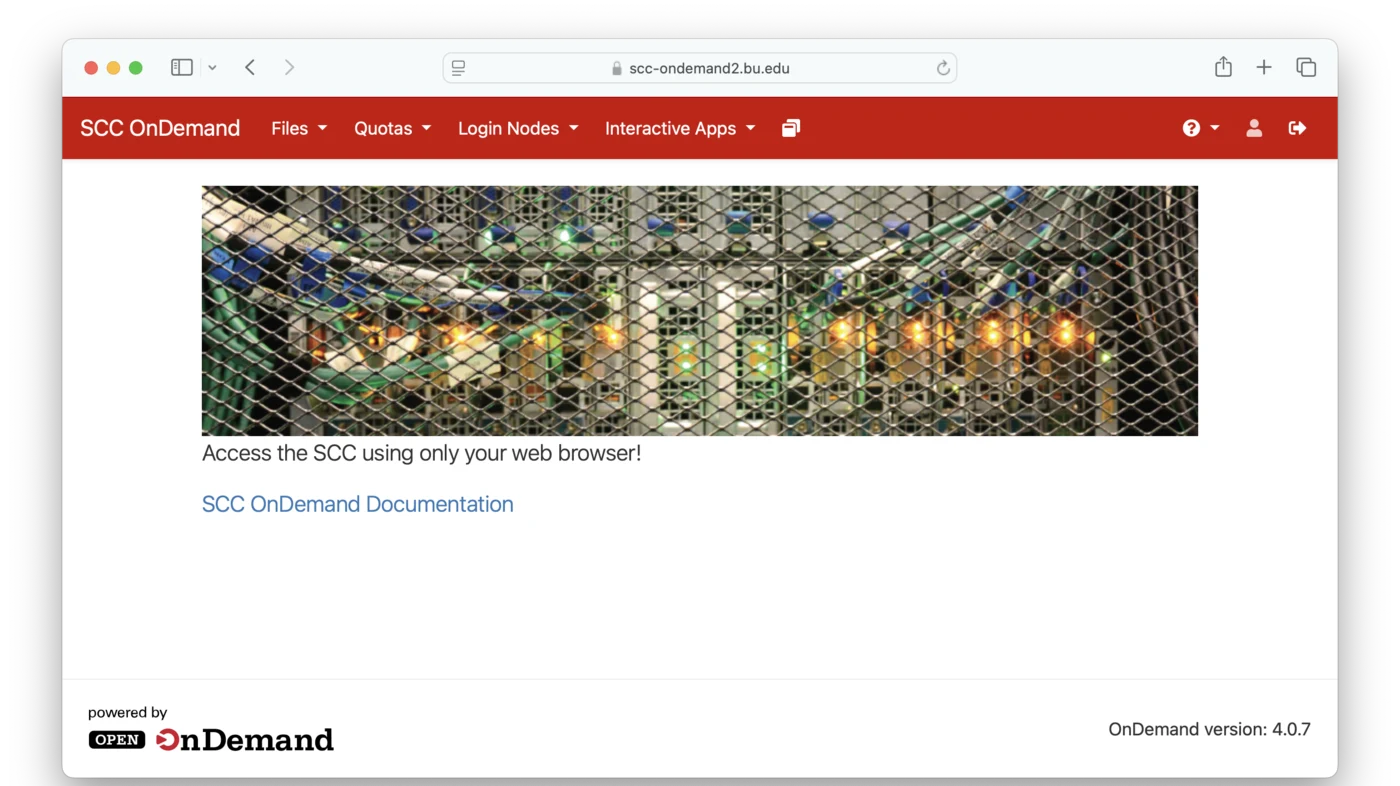
Everything you need is in that red menu bar. The rest of this page walks through it one item at a time.
Files

The file manager — SCC OnDemand's version of the Finder on macOS or File Explorer on Windows. Use it to look at, download, upload, rename, move, copy and delete files on the SCC.
It opens in a new browser tab.
Quotas

A detailed storage report for your home directory and for every project you belong to. This is where you find out how much space you have left before you run out of it, which matters more than new users expect — see The Linux File System.
It opens in a new browser tab.
Login Nodes

Opens a Linux terminal on one of the four login nodes — scc1, scc2,
scc4 or geo — right in your browser.
Login nodes are not for heavy computation. They are shared by everyone on the cluster and are meant for administrative work: moving and renaming files, editing text, submitting jobs. Real analysis belongs on a compute node, which you get from Interactive Apps or from the batch system.
It opens in a new browser tab.
Interactive Apps

This is where you request an interactive session on a compute node — a machine actually designed for heavy computation. The menu lists popular software packages, and for each one you choose the resources you want.
The most basic app is Desktop, which opens a full Linux desktop environment on a compute node. That is the subject of the next page.
Active Sessions

Lists every interactive session you currently have running. This is how you get back to a session after closing its window — the session keeps running until its time limit expires, so closing the tab does not end it.
Help

Links to the resources worth bookmarking: the IS&T help email address, the RCS online documentation, the SCC status page, and SCC account management.