The Desktop Environment
Once your Desktop session connects you get a Linux desktop running on a compute node, displayed inside your browser tab. It looks sparse on purpose — almost everything you do starts from a terminal window.
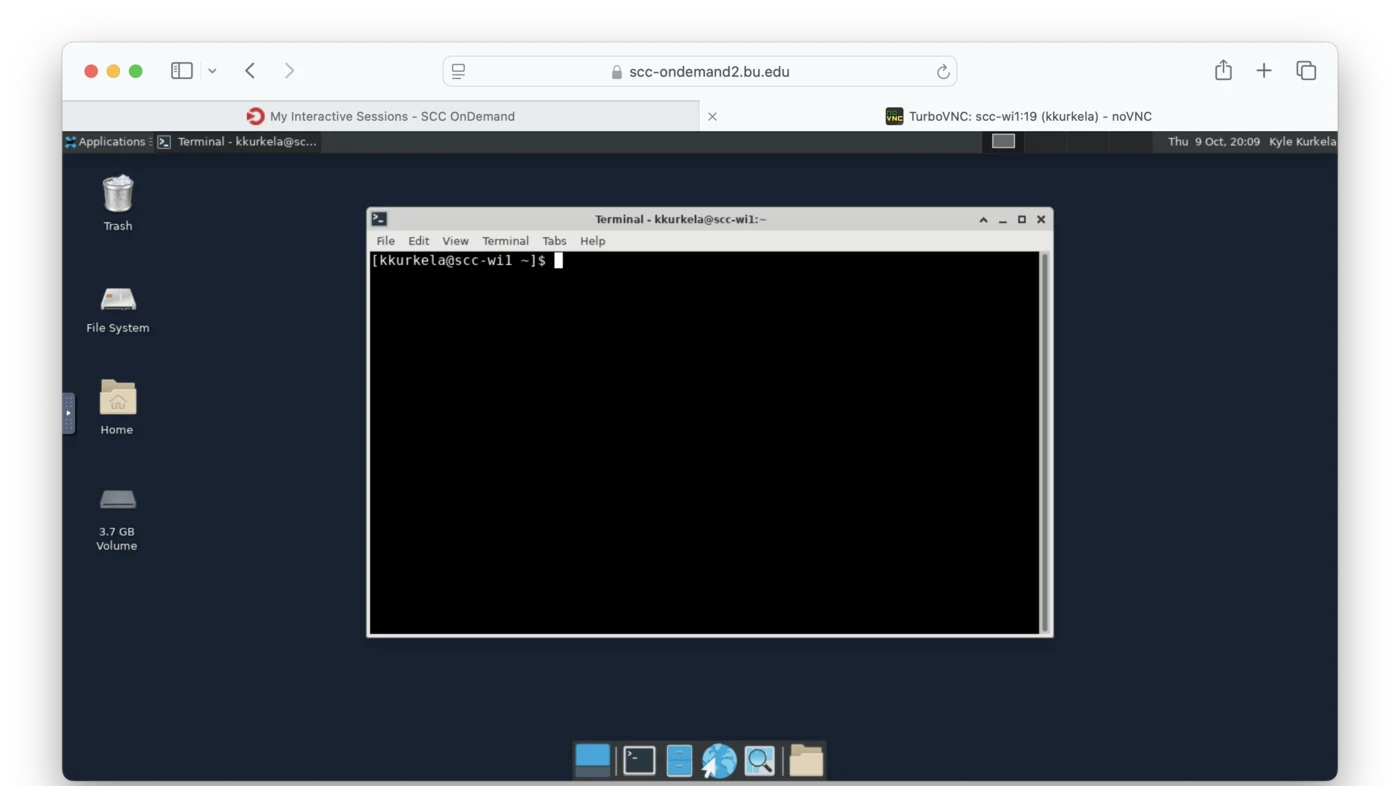
The rest of this page walks through it one piece at a time.
Applications
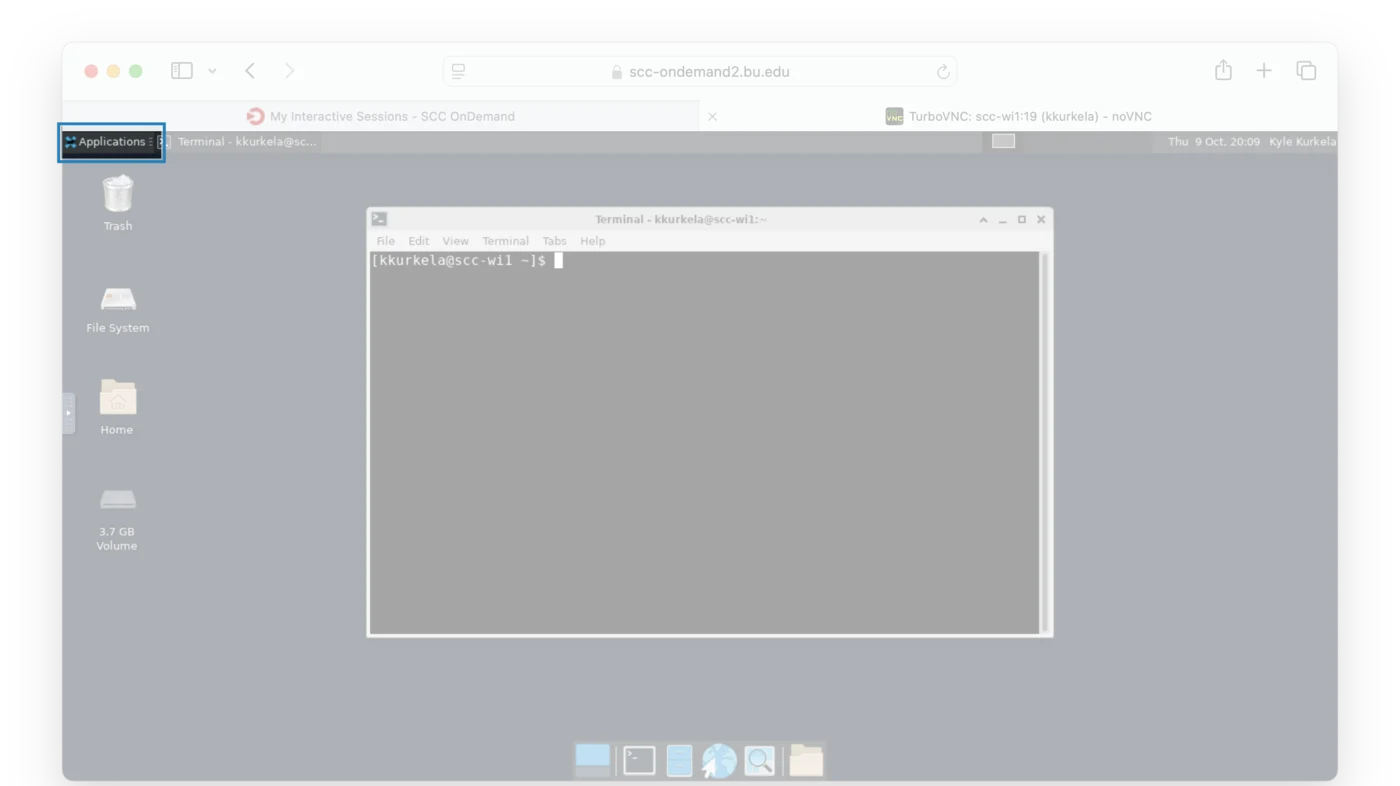
The menu of applications that ship with Linux — the file manager, a text editor, a spreadsheet, a web browser and so on.
The scientific software is not in this menu. FreeSurfer, FSL, MATLAB, SPM and everything else RCS installs is reached through the module system instead, from a terminal.
Open Windows
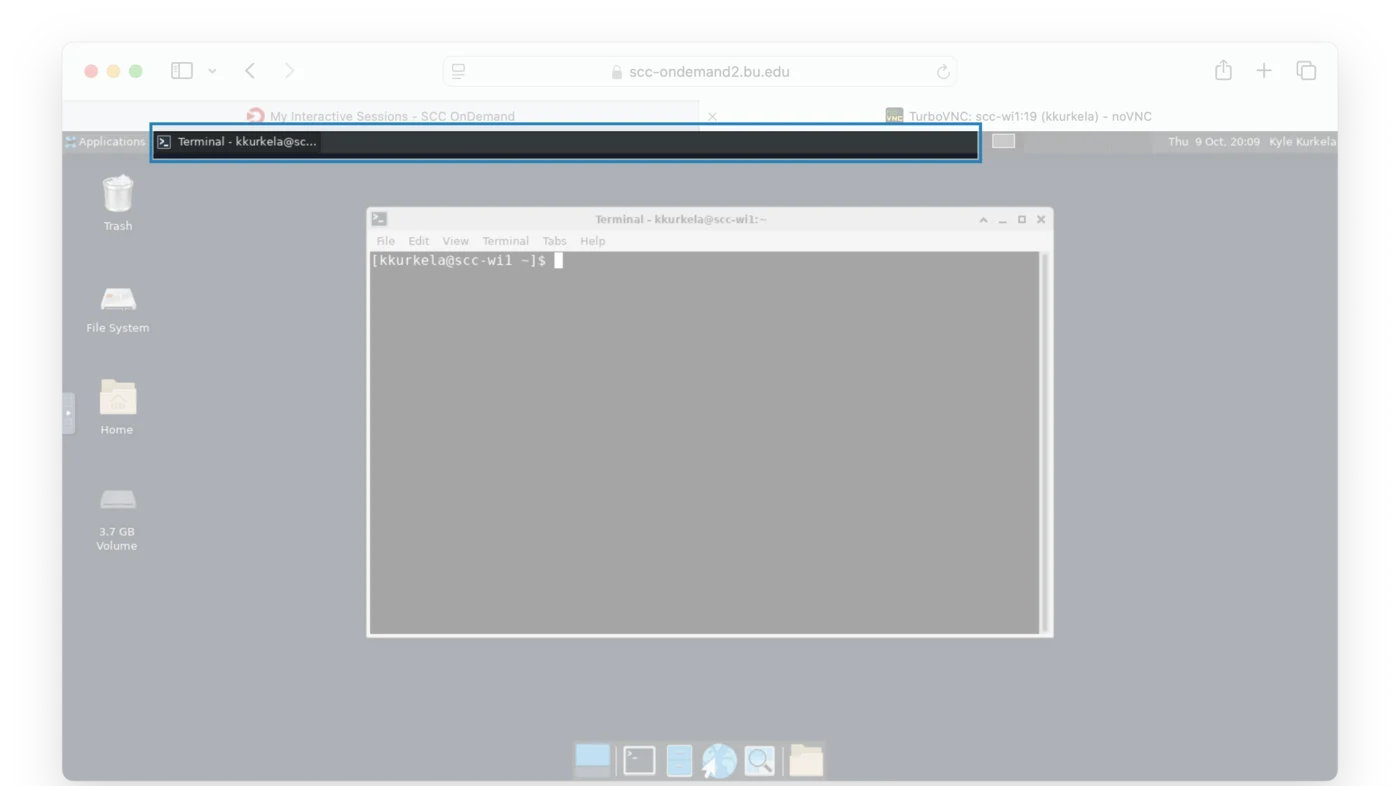
One button per application you currently have open. In the screenshot the only one running is the terminal. Click a button to raise that window, or click it again to minimize it.
Workspaces
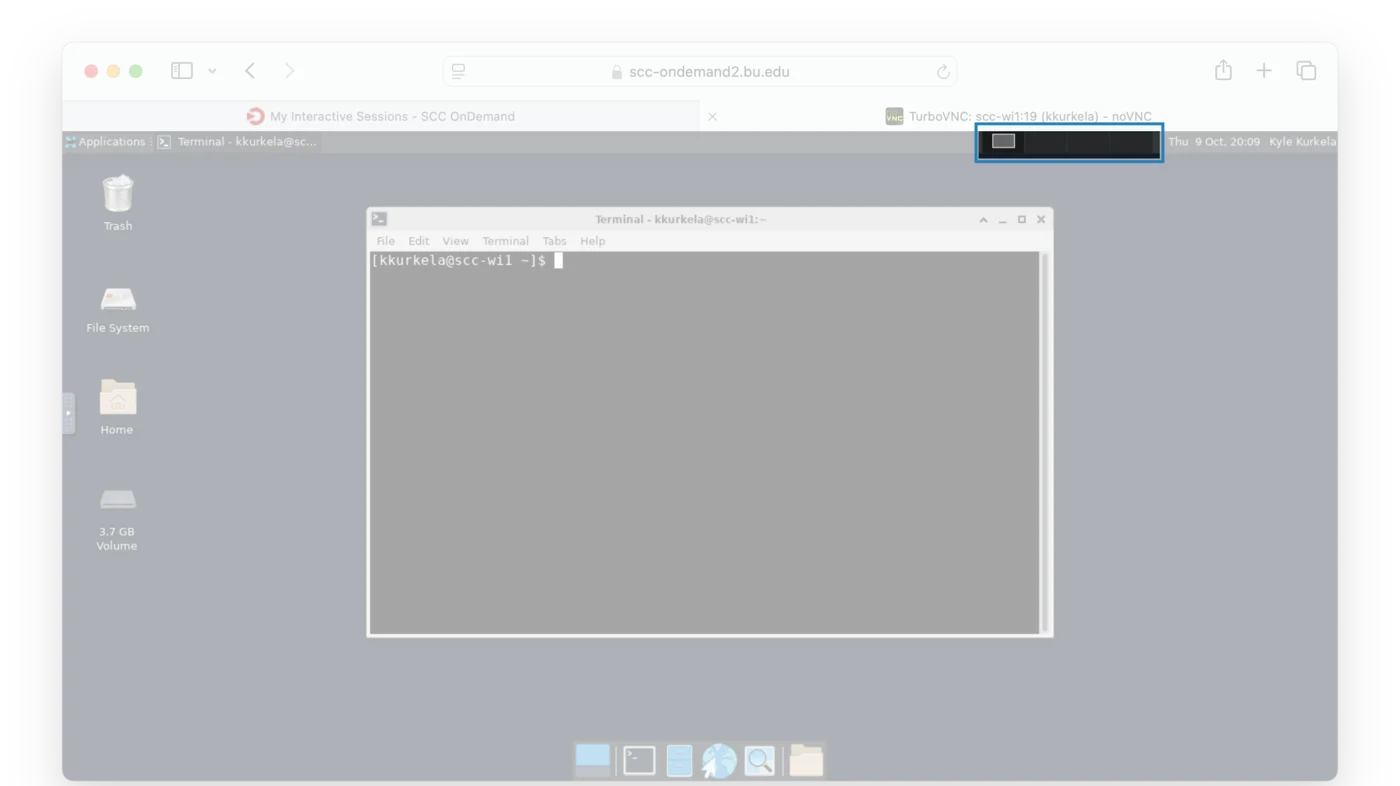
Workspaces are separate copies of your desktop. You can keep different windows open in each and switch between them — a viewer in one, a terminal and your editor in another — rather than stacking everything on one screen.
Click a box to switch to that workspace.
Trash
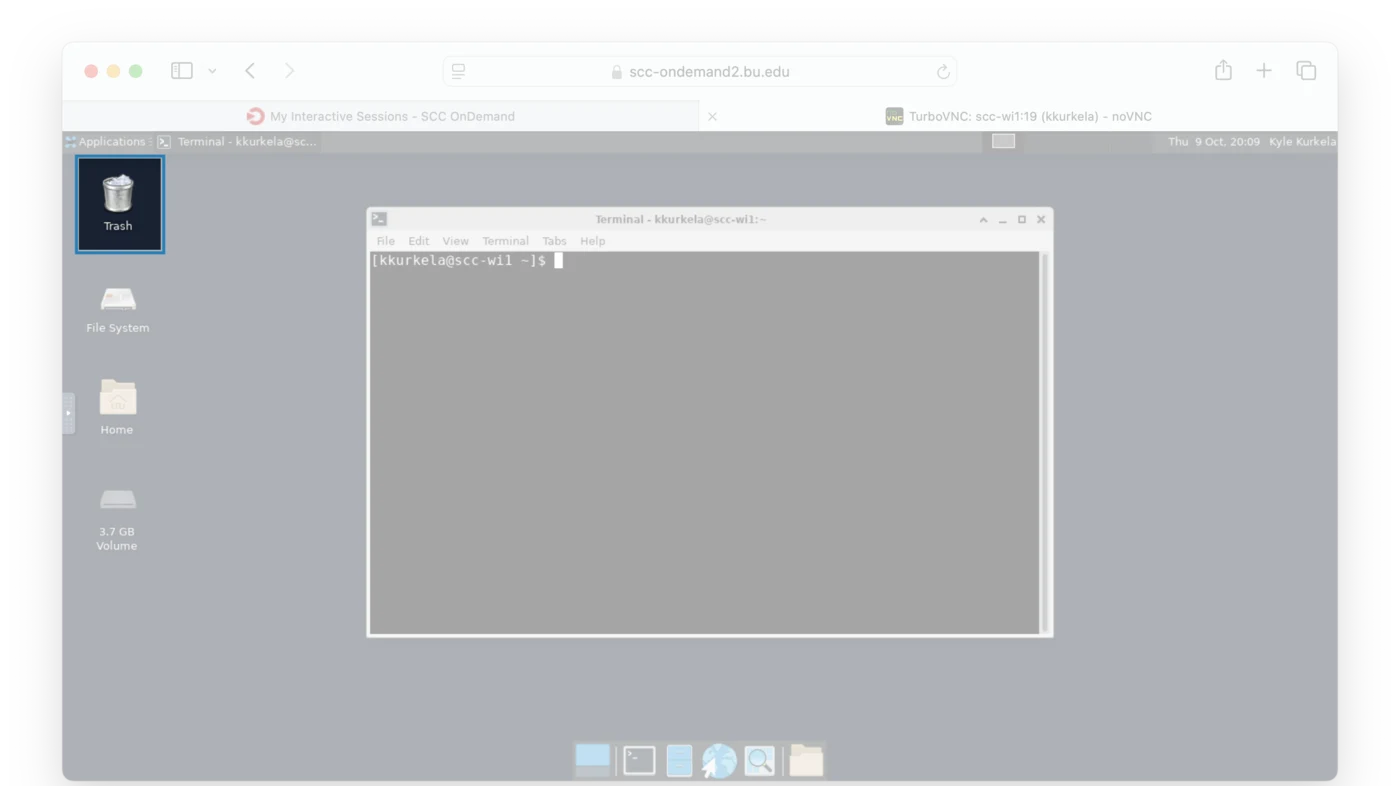
Where files deleted through the graphical file manager go.
This only catches graphical deletes. Files removed with
rmin a terminal do not go here — they are gone immediately. See The Linux Command Line.
File System
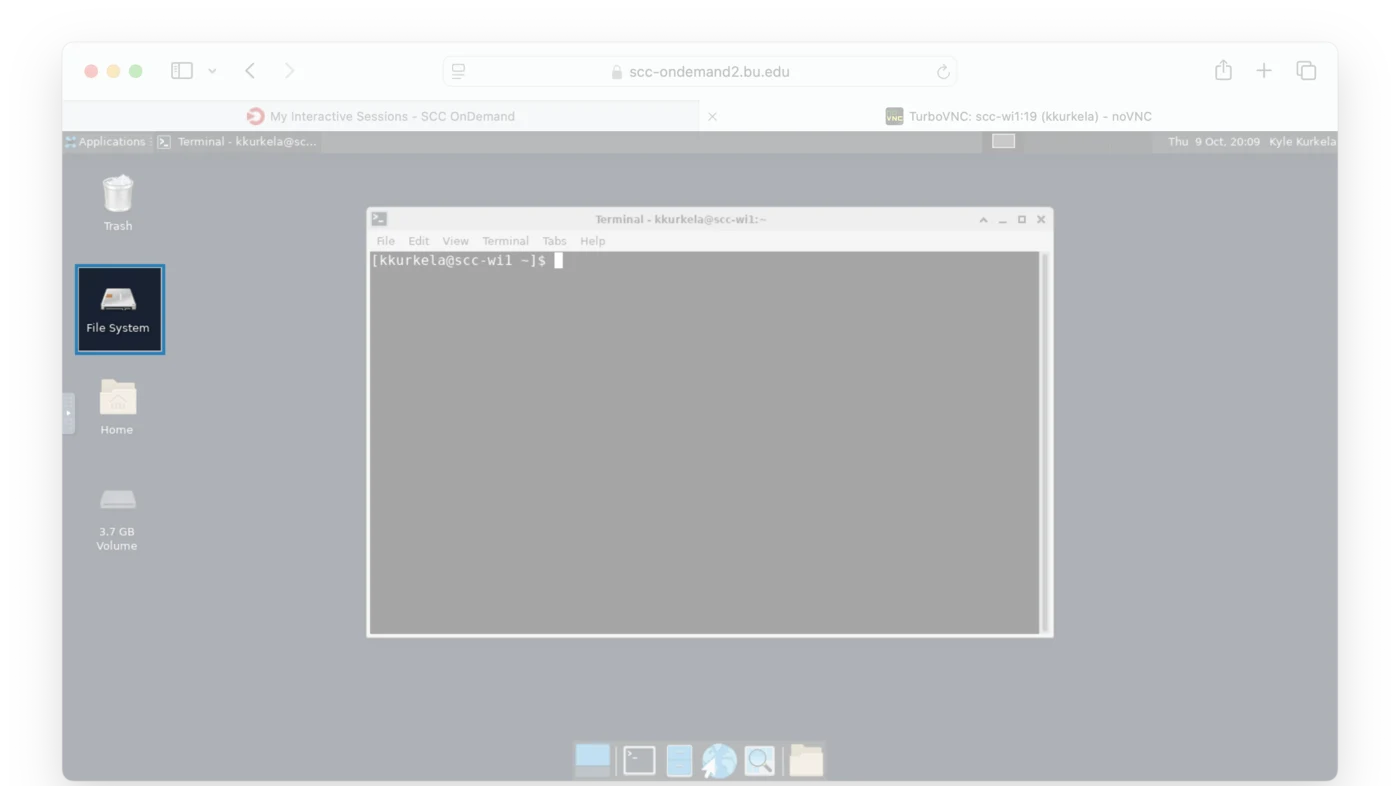
Opens the file manager at the root of the filesystem, /. This is the way
in to /project and /projectnb — see
The Linux File System.
Home
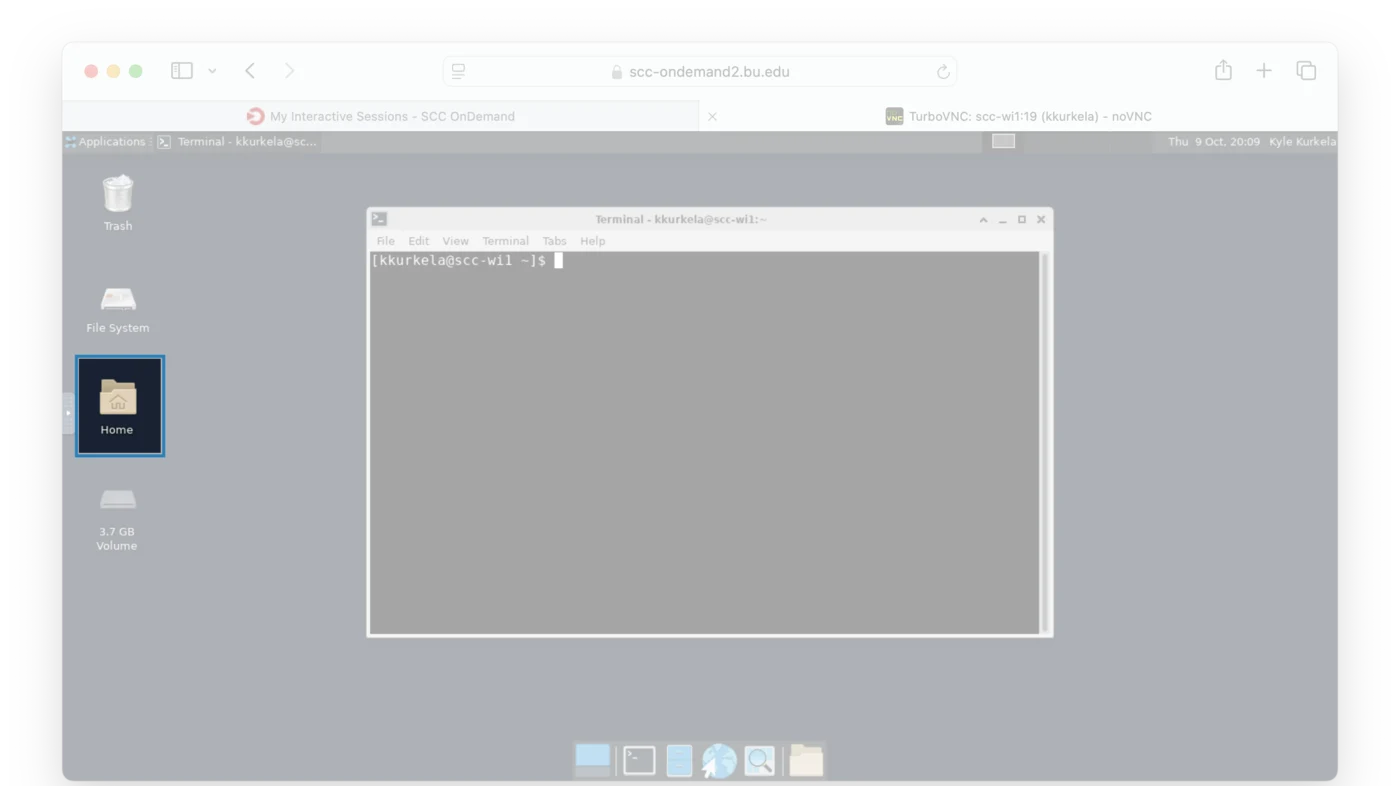
Opens the file manager at your home directory, the same place a new terminal starts in.
The Dock
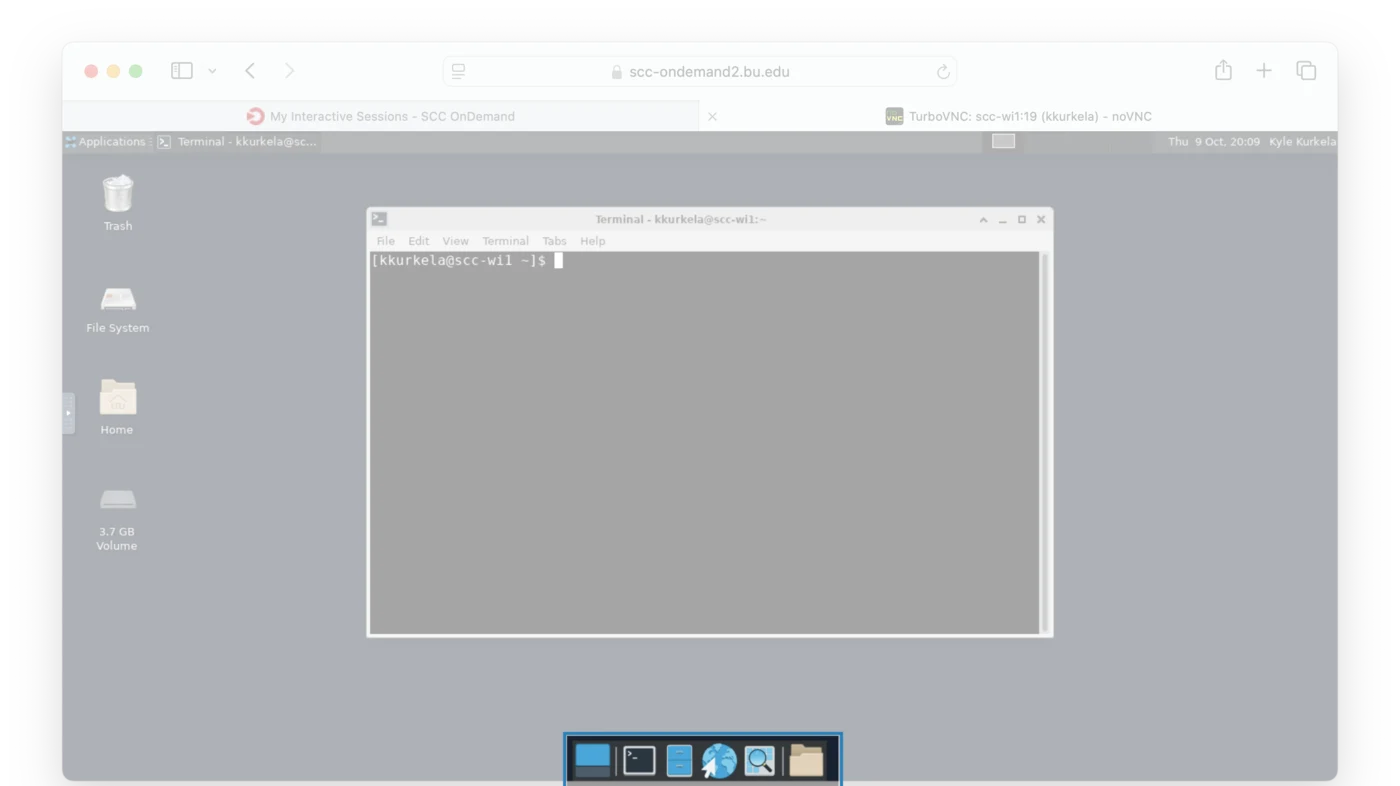
Shortcuts to the applications you reach for most, including the terminal, the file manager and a web browser.
Opening a Terminal
The terminal is where the rest of this guide happens. Click its icon in the dock, or find it under Applications.
A Desktop session also opens one for you at startup — that is what the
Initial command to run field on
the request form does, with its default of xfce4-terminal.
What Is Loaded
Unless you listed modules on the session request form, nothing scientific is loaded yet:
[scc4]$ module list
No modules loaded
Load what you need with the module system.
Copy and Paste
The clipboard is not universal. The desktop inside the browser tab keeps its own clipboard, so copying and pasting between it and your local computer behaves oddly.
RCS documents the ways around this: Copy and paste in SCC OnDemand.